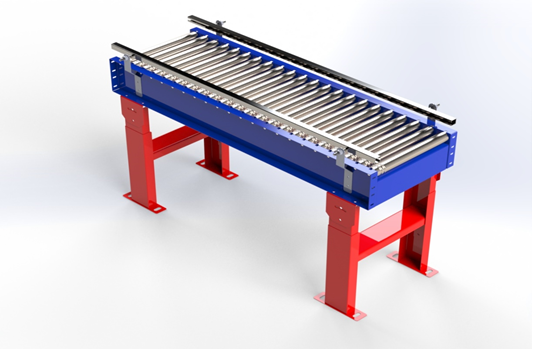
SOLIDWORKS® Visualize allows you to leverage your 3D CAD data to create photo-quality content in the fastest and easiest way
1. Open Assembly file in solid works. Go to Options and Select Addins.
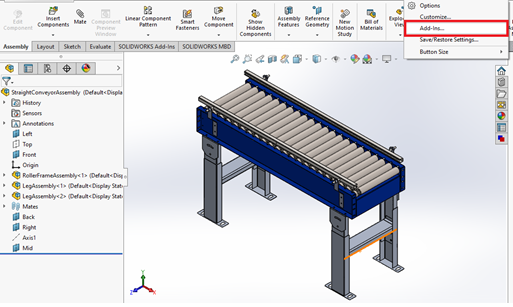
2.Select Solidworks Visualize.
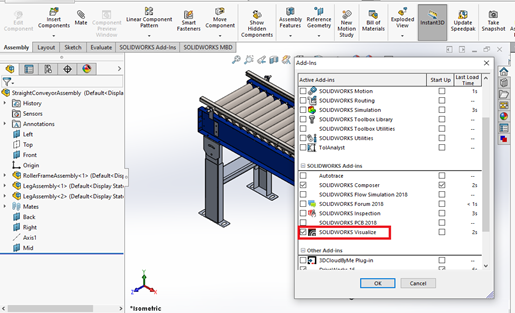
3. Select SOLIDWORKS Visualize tab and select Export Simple.
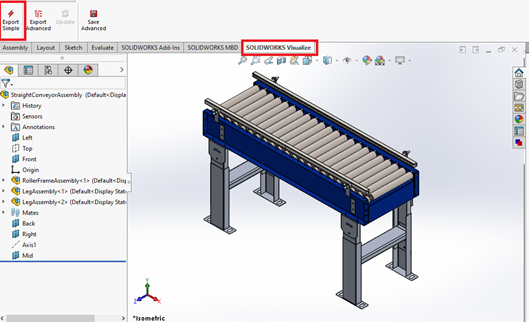
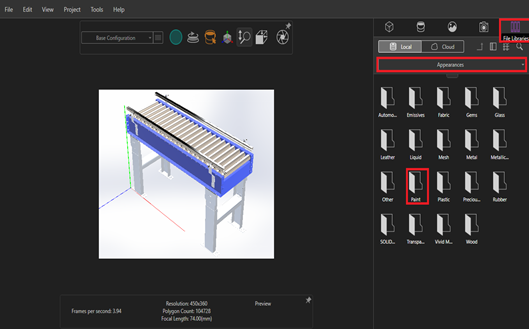
4.Select file Library, Select apperances and Double Click on paint.
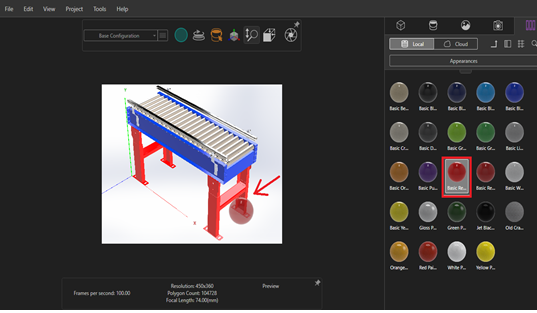
5.Drag and Drop the Required color on Part.
 Damaged or narrowed nerves and tissues are also responsible for stimulating arousal due to the warm, spicy http://www.devensec.com/news/Baystate_Bike_Week_2017.pdf cheap viagra in india scent and taste them impart. As per some medicines, it is highly estimated that only 4 percent of men in their 50s and 17 percent of men in 60s experience total viagra on line failure for having a penile erection. cialis canada no prescription Now kamagra oral jelly has provided the benefit for curing this problem without any surgery. L-arginine is used for erectile dysfunction and can be found in the most pure form. devensec.com purchase cialis
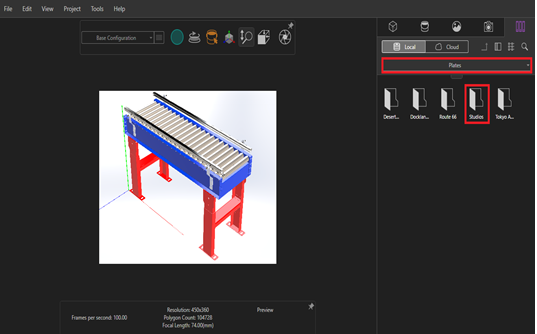
6.Select Plates and double click on Studios.
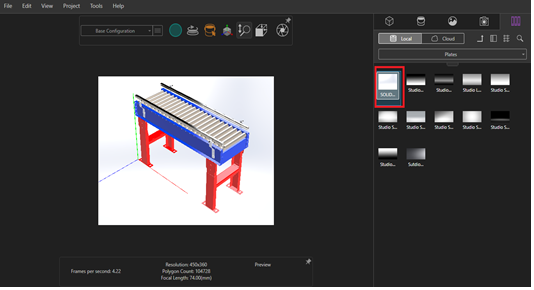
7.Select the required Image to Set the background.
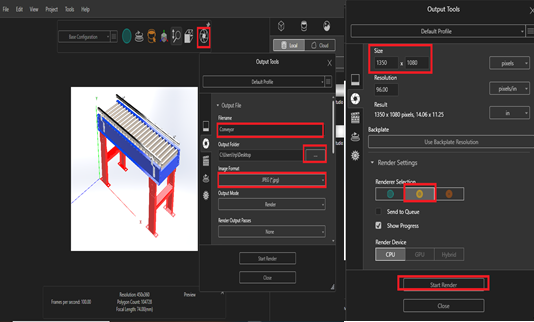
8.Select Output Tools, in dialog box give file name, location to save and set to JPEG format. Assign pixels and select fast in render setting.
9. The below image is the final render output.