Why customize DraftSight at all
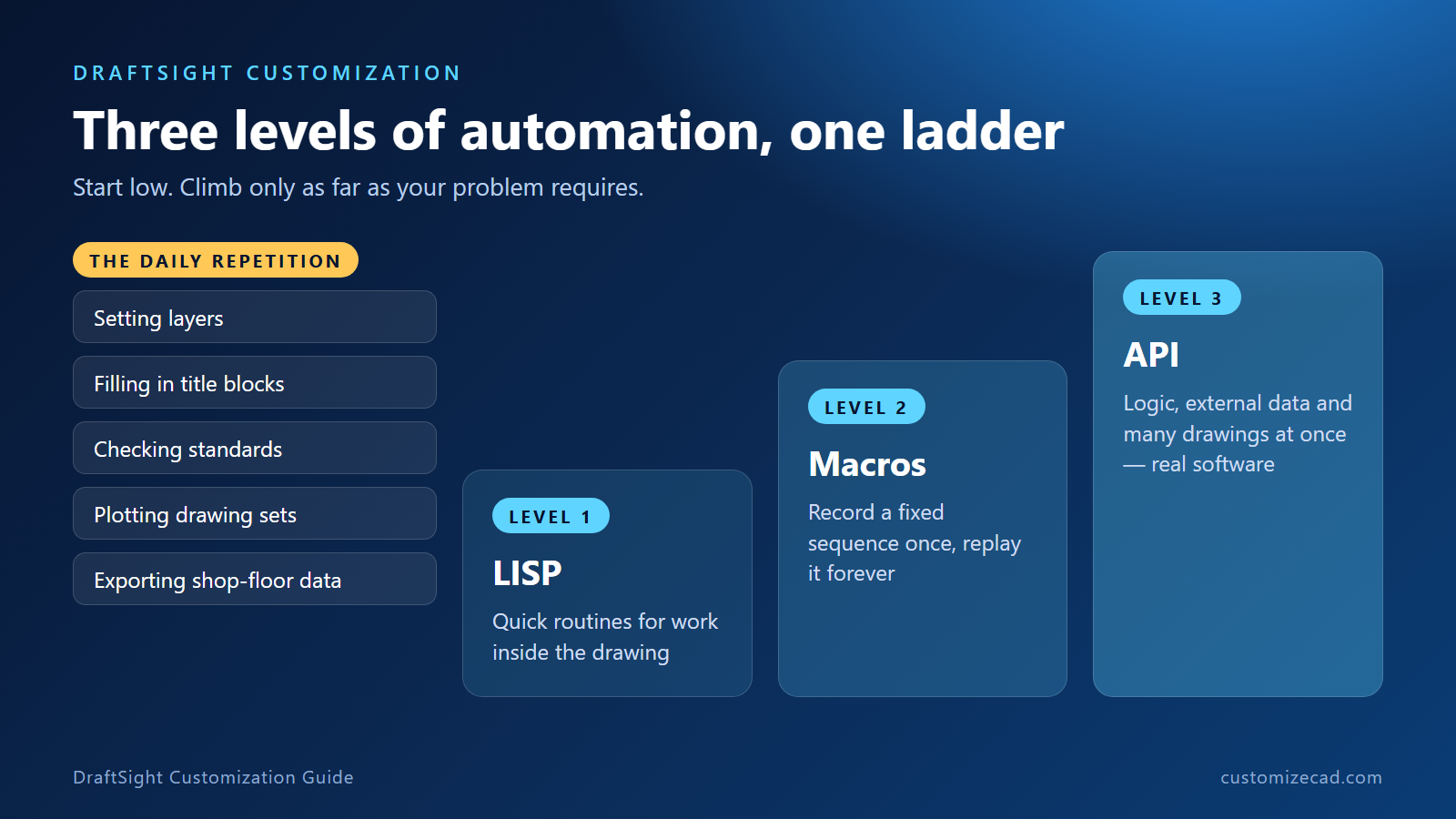
Most drafting teams spend their day repeating the same five or six operations: setting layers, filling in title blocks, checking standards, plotting drawing sets, exporting data for the shop floor. DraftSight gives you three levels of automation to attack that repetition — LISP, macros, and the API. They are not competing options; they are a ladder. Start low, climb only as far as your problem requires.
One important licensing point before we begin: LISP and DCL support are part of every DraftSight tier, from Standard upward. The macro recorder and programmatic API access are features of the higher tiers, with C++/.NET API access formally included in DraftSight Enterprise. If you are unsure which tier you hold, ask us to check before you build a workflow on top of it.
Level 1 — LISP: the quickest win
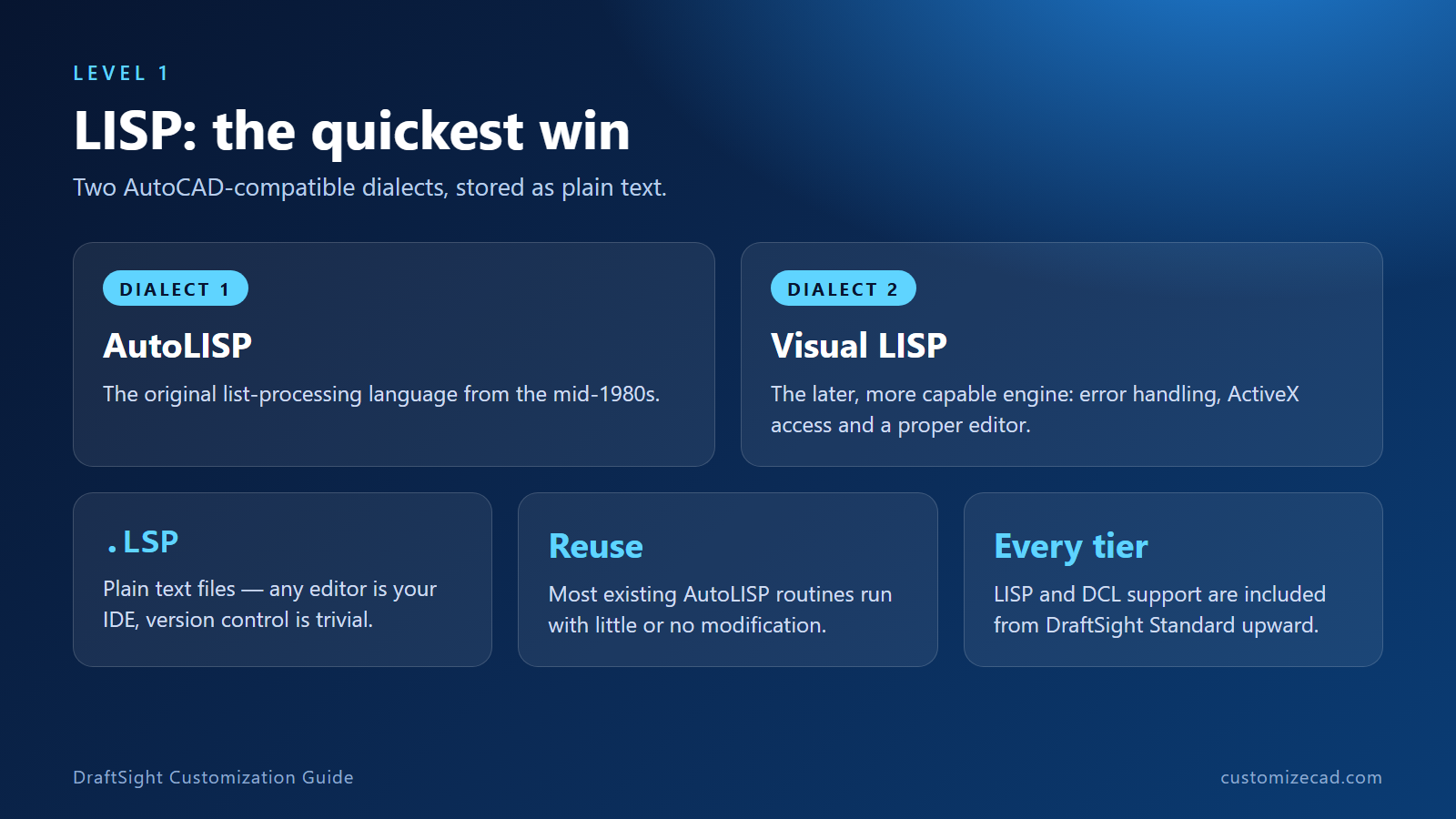
DraftSight supports two dialects of LISP, inherited directly from the AutoCAD world:
- AutoLISP — the original list-processing language from the mid-1980s.
- Visual LISP — the later, more capable engine that adds error handling, ActiveX access and a proper editor.
Both are stored as plain text files with a .LSP extension, which means any text editor is your IDE and version control is trivial. Because the dialects are AutoCAD-compatible, most existing AutoLISP routines your team already owns will run with little or no modification — a real advantage if you are moving off AutoCAD LT, where LISP never worked at all.
A first routine
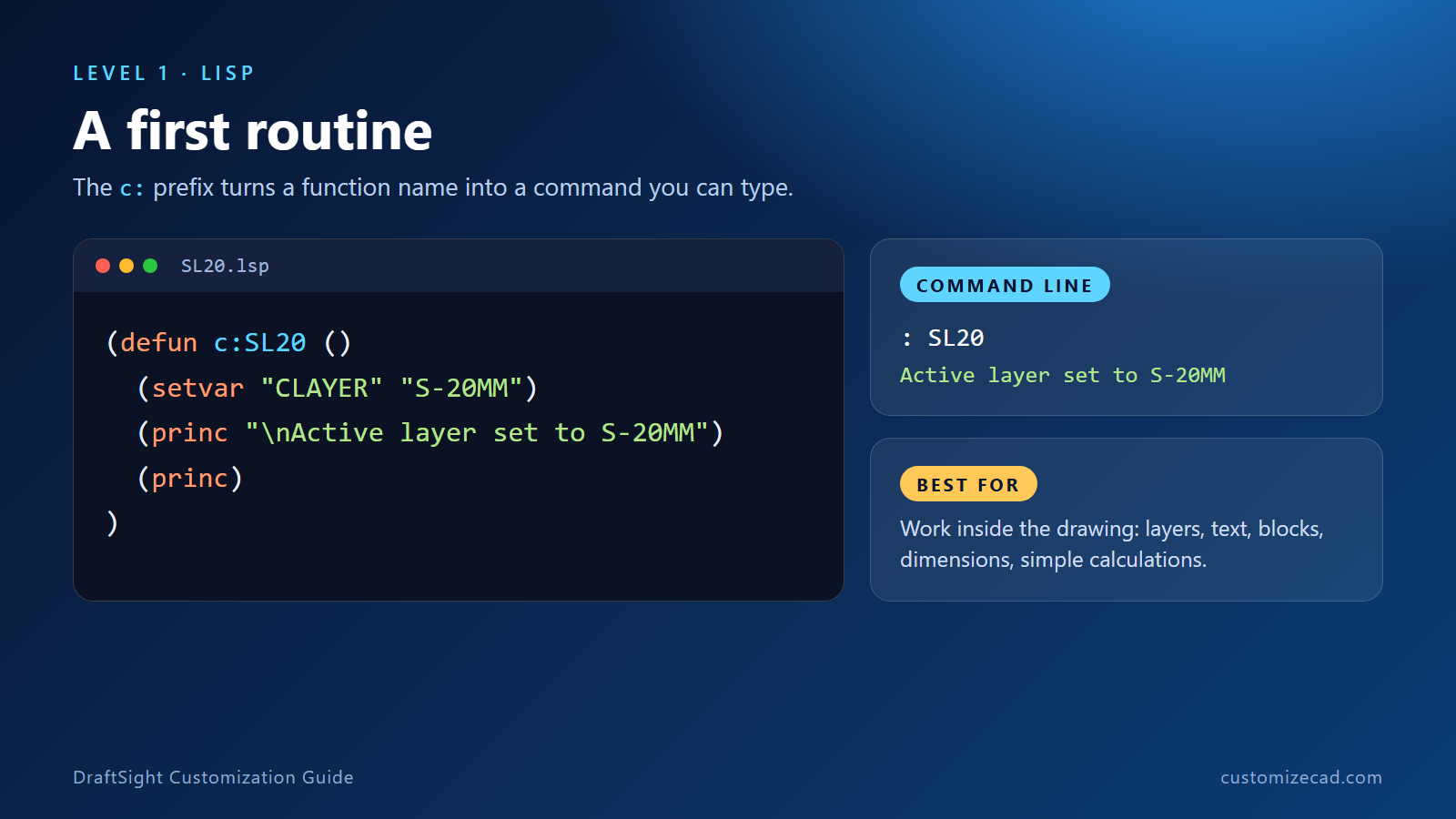
Routines are defined with a c: prefix, which turns the function name into a command you can type on the command line:
(defun c:SL20 ()
  (setvar "CLAYER" "S-20MM")
  (princ "\nActive layer set to S-20MM")
  (princ)
)
Load it, type SL20, and the active layer changes. Wrap that inside a loop or a selection set and you have a standards-enforcement tool. LISP is the right choice when the work is inside the drawing: layers, text, blocks, dimensions, simple calculations.
Stop loading it by hand
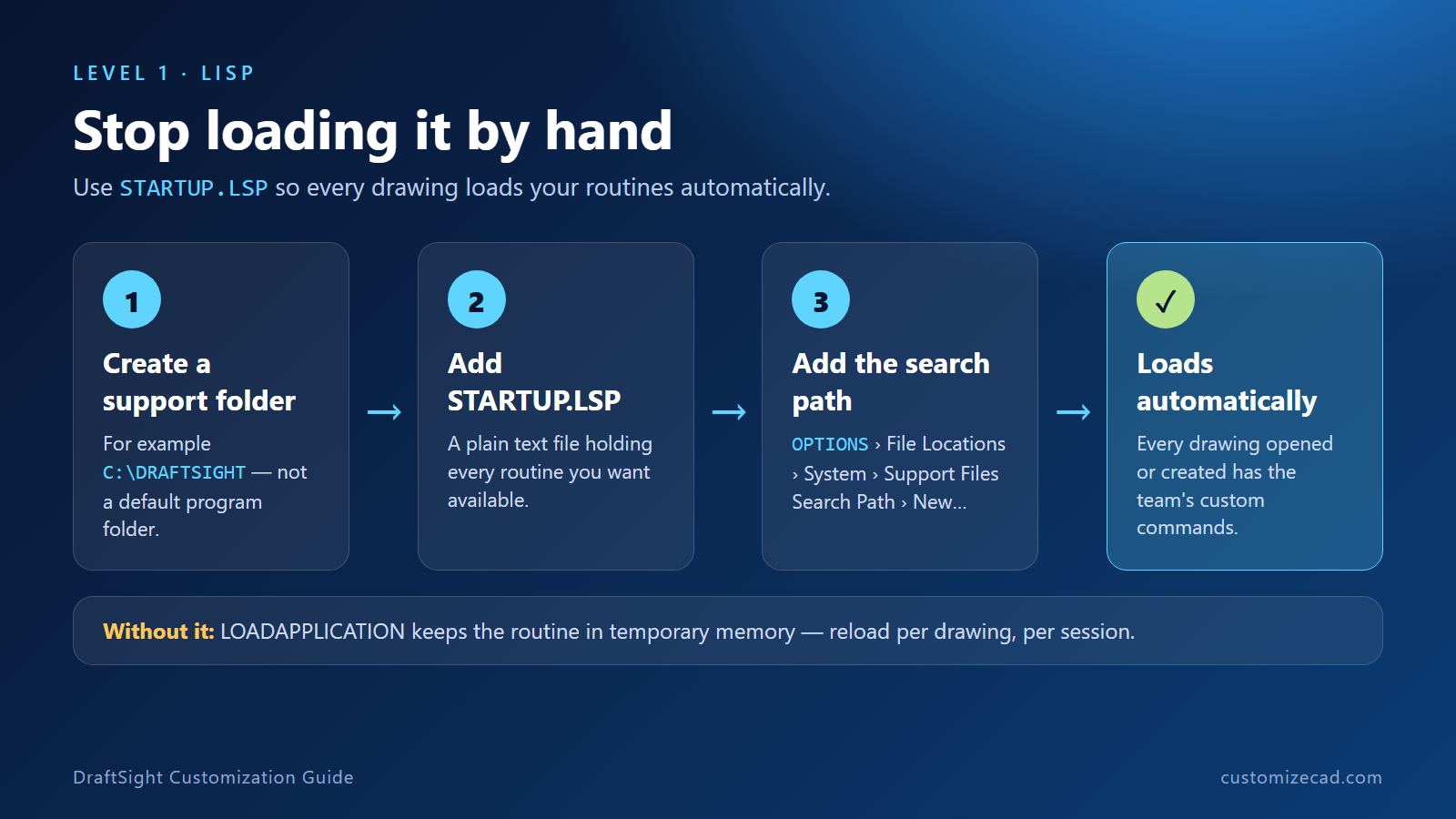
By default a routine is loaded with the LOADAPPLICATION command (Manage > Applications > Load Application; Tools > Load Application in the Classic workspace). That is fine for testing and painful in production: the routine lives in temporary memory, not the drawing database, so it is gone when the drawing closes and has to be reloaded per drawing and per session.
The fix is STARTUP.LSP:
- Create a dedicated support folder — for example
C:\DRAFTSIGHT. Do not put it in a default program folder, or an uninstall can take it with it. - Create a plain text file named
STARTUP.LSPin that folder and paste in every routine you want available. - Run
OPTIONSand go to File Locations > System > Support Files Search Path, then add your folder with New….
Every drawing opened or created from then on loads the file automatically. One configuration step, and the whole team's custom commands are simply there.
Level 2 — Macros: record once, replay forever
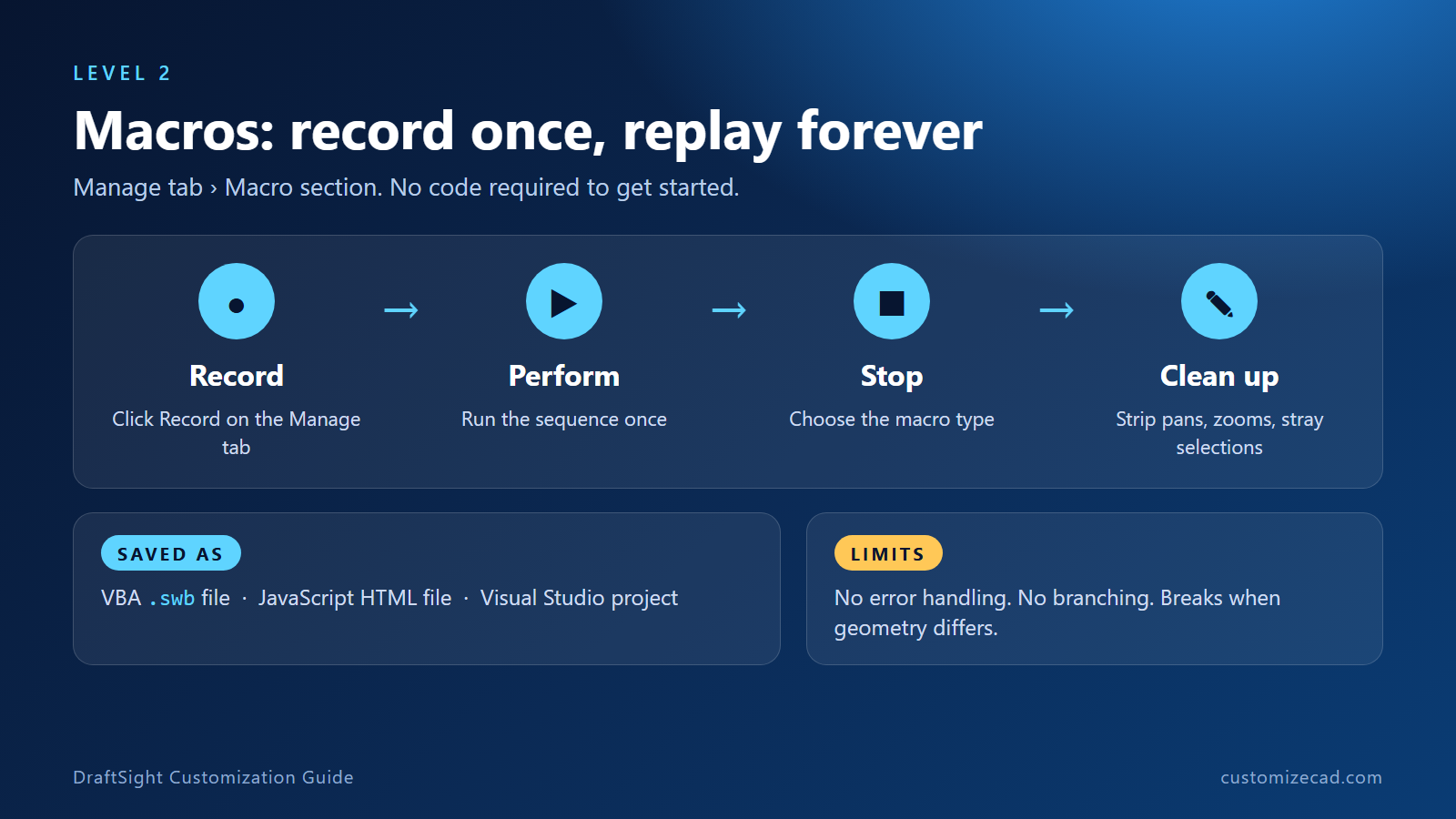
When you do not want to write code at all, record it. On the Manage tab in the Macro section, click Record, perform the sequence, then click Stop. DraftSight asks which macro type to produce, and the recorder writes the corresponding API calls for you.
This is the single best teaching tool in the product. A recorded macro shows you exactly which objects and methods the API uses to accomplish a task — far faster than reading documentation cold. Record the operation, open the generated code, strip out the noise (panning, zooming, stray selections), and you have the skeleton of a real automation.
Recorded macros are typically saved as a VBA .swb file, a JavaScript HTML file, or a Visual Studio project, depending on the type you pick. To edit a VBA macro, open it in the VBA editor, add a reference to dsAutomation.dll from the bin folder of your DraftSight installation, and run or save from there.
Where macros fall short: they replay a fixed sequence against whatever happens to be on screen. They have no error handling, no branching on drawing content, and they break when the geometry differs from what was recorded. Use them for genuinely mechanical sequences — layer setups, standard notes, plot configurations — and graduate to the API the moment you need a decision.
Level 3 — The API: when you need software, not a shortcut
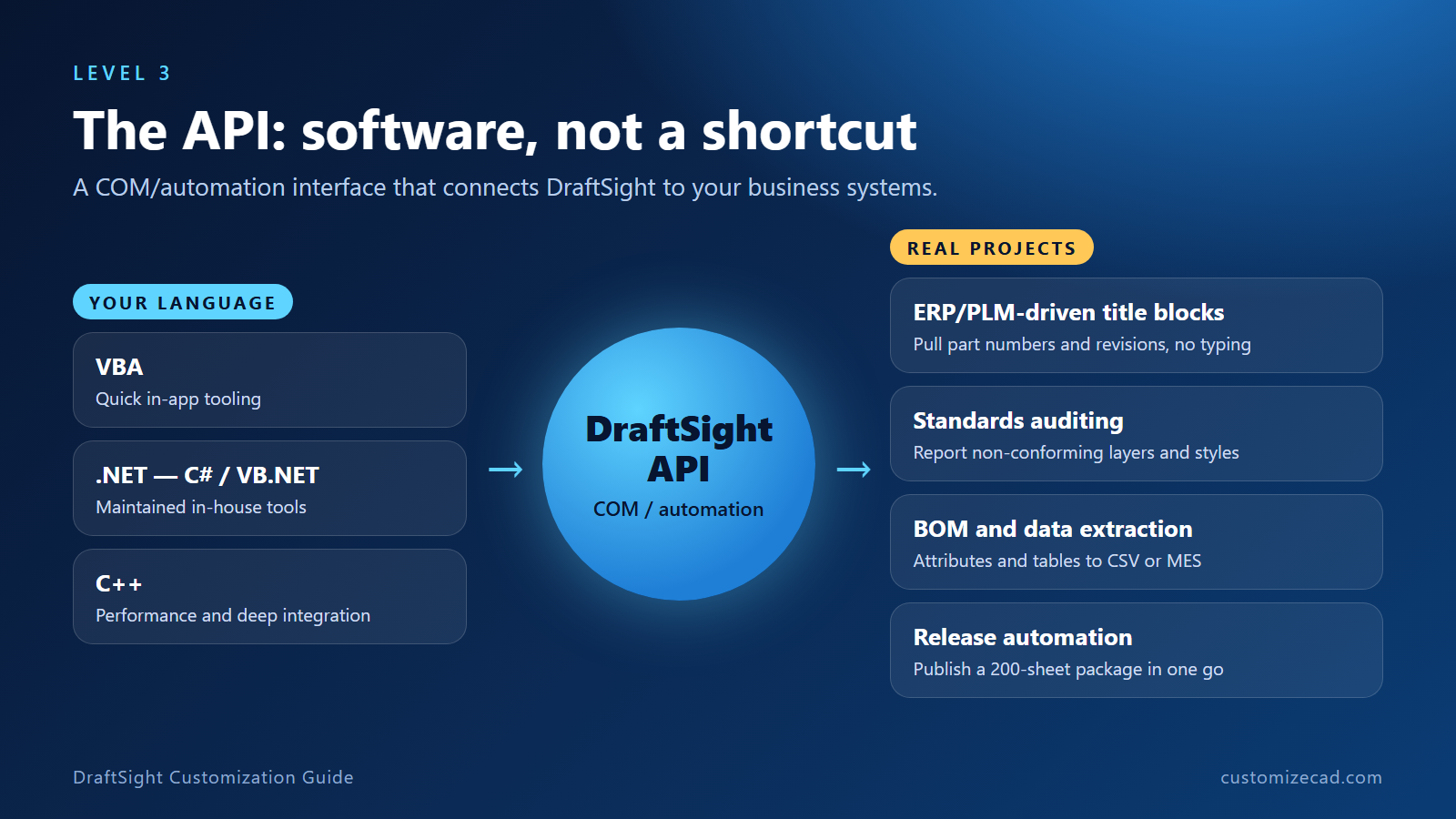
The DraftSight API is a COM/automation interface. Your first decision is simply language and application type: VBA for quick in-app tooling, .NET (C# or VB.NET) for maintained in-house tools, or C++ when performance and deep integration matter.
The API is where DraftSight stops being a drafting tool and becomes part of your business system. Typical real projects:
- ERP/PLM-driven title blocks — pull part numbers, revisions and customer data instead of typing them, eliminating a whole class of transcription errors.
- Standards auditing — walk every drawing in a release pack and report non-conforming layers, text styles, dimension styles or missing revision entries before the checker ever opens it.
- BOM and data extraction — export block attributes and tables to CSV or push directly into a manufacturing system.
- Release automation — combine programmatic plotting with a naming convention so a 200-sheet package publishes in one go, correctly named and filed.
Two practical details that save days: decide add-in versus macro early (add-ins are reusable components that can be shared across users and are generally more reliable across version upgrades), and design for deployment from day one — an add-in that only works on the developer's laptop has not solved anything.
Which level should you choose?
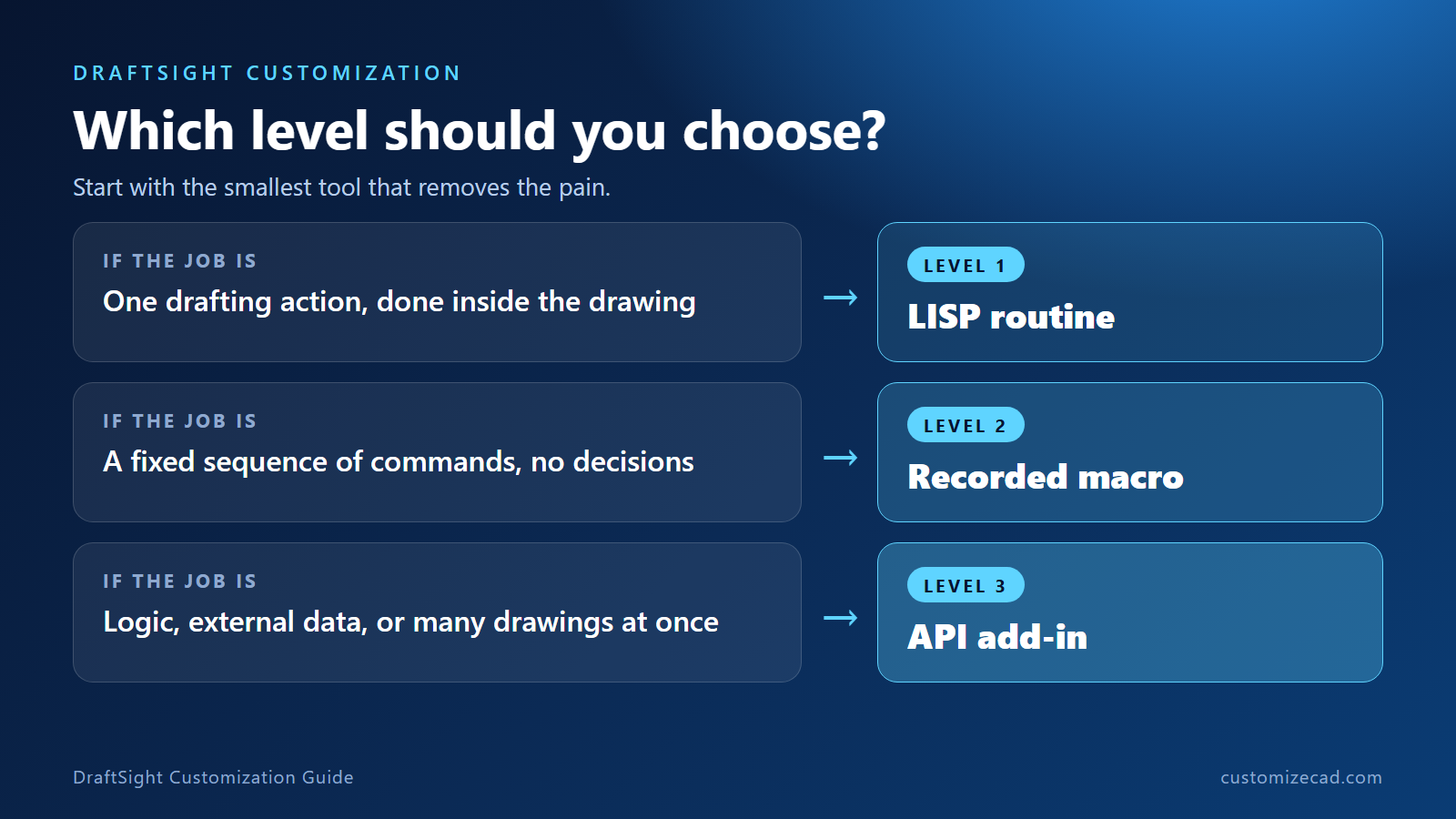
- One drafting action, done inside the drawing → LISP routine.
- A fixed sequence of commands, no decisions → recorded macro.
- Logic, external data, or many drawings at once → API add-in.
The ladder matters because it is also the cheapest path. A 20-line LISP routine deployed through STARTUP.LSP will often return more hours than a three-week API project — so start with the smallest tool that removes the pain, and only build software when the pain is genuinely software-shaped.
Common pitfalls
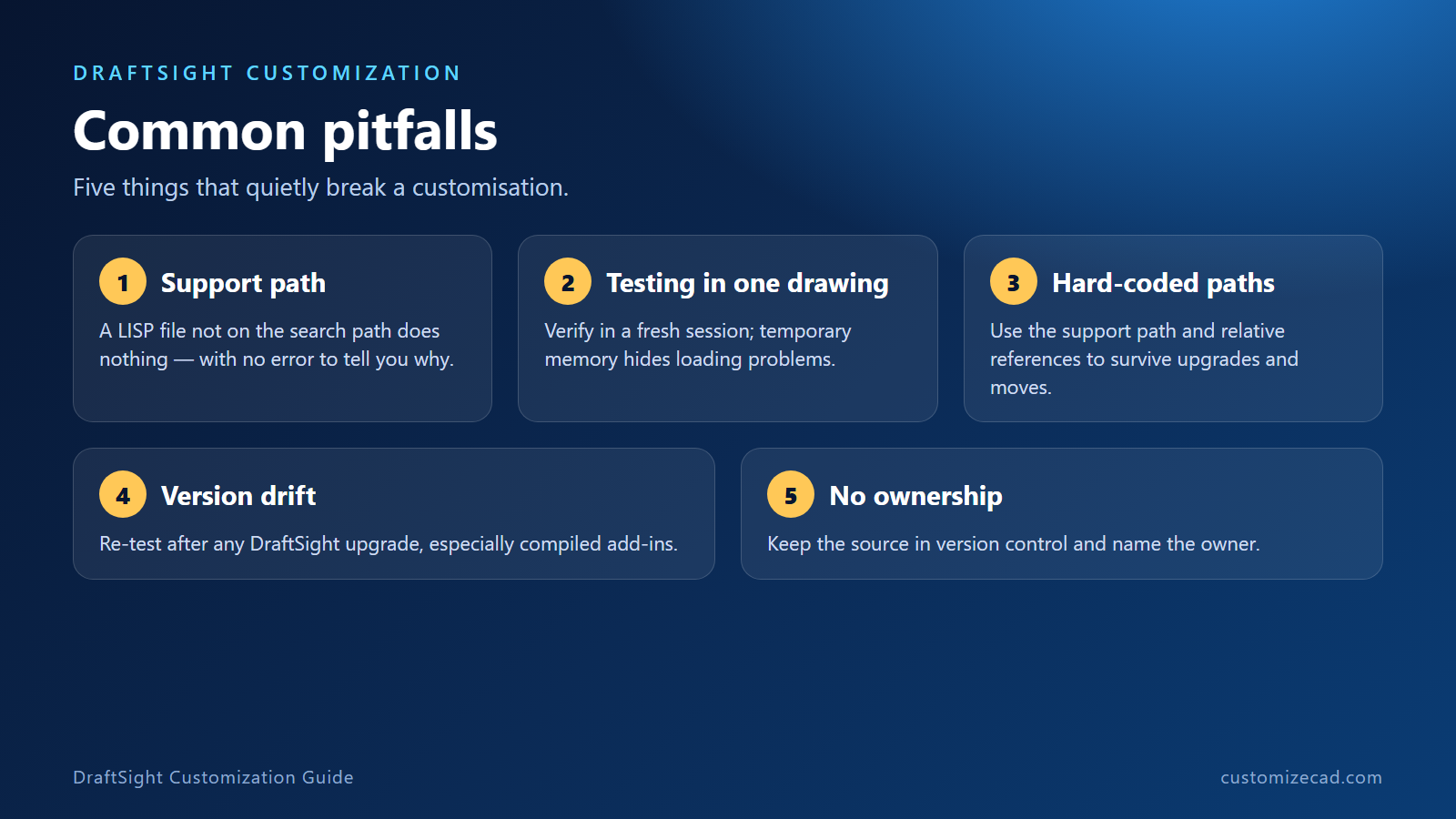
- Support path, not file location. A LISP file in the right folder but not on the search path does nothing, and there is no error to tell you why.
- Testing in one drawing. Always verify a custom command in a fresh session — temporary memory hides loading problems.
- Hard-coded paths. Use the support path and relative references so the tool survives an upgrade or a move to another machine.
- Version drift. Re-test customisations after any DraftSight upgrade, especially compiled add-ins.
- No ownership. An undocumented routine that one person wrote in 2019 is a liability. Keep the source in version control and name the owner.
Where to start this week
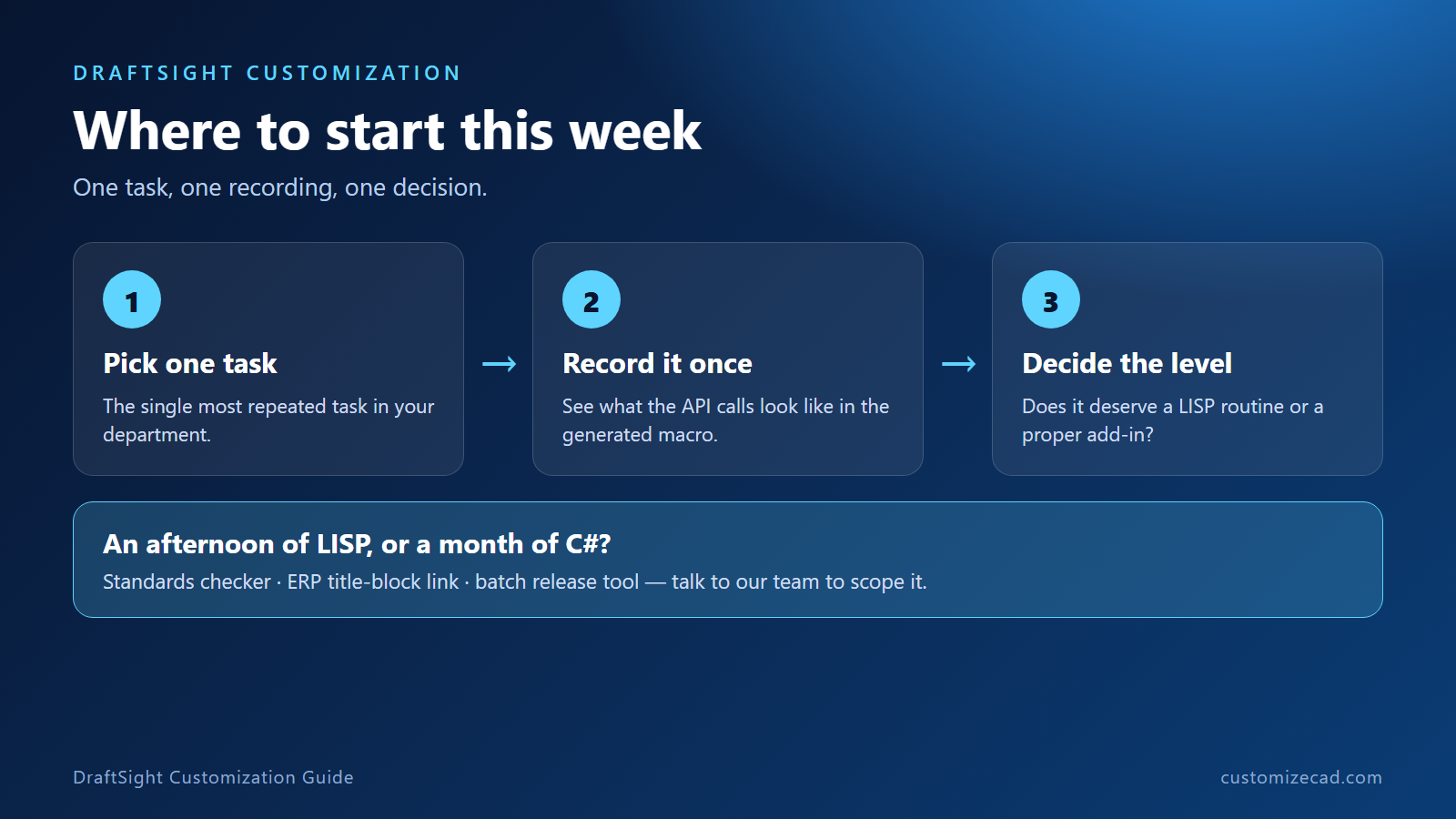 Pick the single most repeated task in your department. Record it once to see what the API calls look like, then decide whether it deserves a LISP routine or a proper add-in. If your team is still on AutoCAD LT, note that LISP is not available there at all — so customisation is one of the concrete productivity arguments for a DraftSight migration, alongside native DWG and a familiar command line.
If you would like help scoping a customisation — a standards checker, a title-block link to your ERP, or a batch release tool — talk to our team. We build these regularly and can tell you quickly whether what you are describing is an afternoon of LISP or a month of C#.