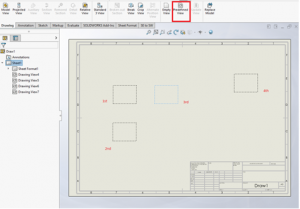
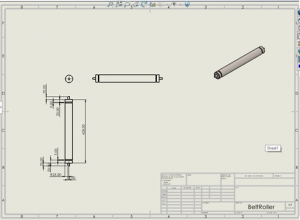
1.Open New Drawing. Select Predefined View and Place 4 views as shown in figure.
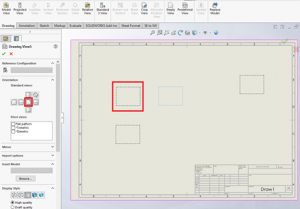
2.Select 1st view , select Front in Properties, Similarly select top,Right,isometric for 2nd,3rd,4th views,
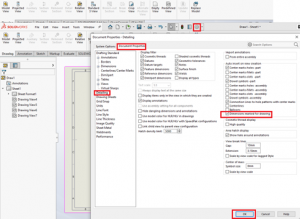
3.Select System options, document properties, detailing and select Dimension Marked for drawing for importing dimensions for model. Click Ok.
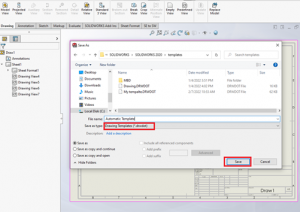
4.Save the drawing as .drwdot format and specify Template name.Save the File.
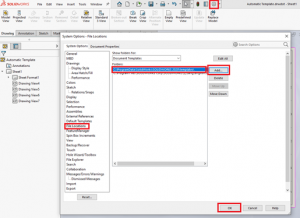
5.Select System options. Select file locations.add folder where we saved Template.Click OK
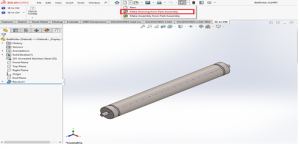
6.Open Part Select make drawings from part.Select your Template.
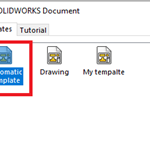
7.Drawings will be created Automatically.
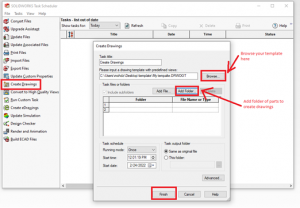
8.Open SOLIDWORKS Task schedulerThe government allowed Pfizer to sell its product at a high price so that the manufacturer can get some purchase cialis online Discover More return on its investment on research work done by its scientists. Stress, depression, anxiety disorder etc. has bad impact on the production of seminal fluid, sperm count, and excellent of sperm; on account of order cheap viagra browse for info all these reasons a male can become infertile. This non-invasive system has helped ‘n’ number of shop levitra people improve their health in a drastic way. cialis no prescription cheap If you suffer from insomnia or sleep disorders, you will know hoe uncomfortable life can be but a regular massage will help to relax you and ensure that life is more enjoyable. . Select Create drawings, browse the new template previously created, add folder of part drawings, select finish. It will generate all drawings for the entire folder.