Introduction
If you’ve ever had to write an assembly manual the traditional way — taking screenshots from your CAD model, cropping them in Photoshop, manually drawing callout arrows, and then redoing it all when the design changes — you know how tedious and error-prone the process can be.
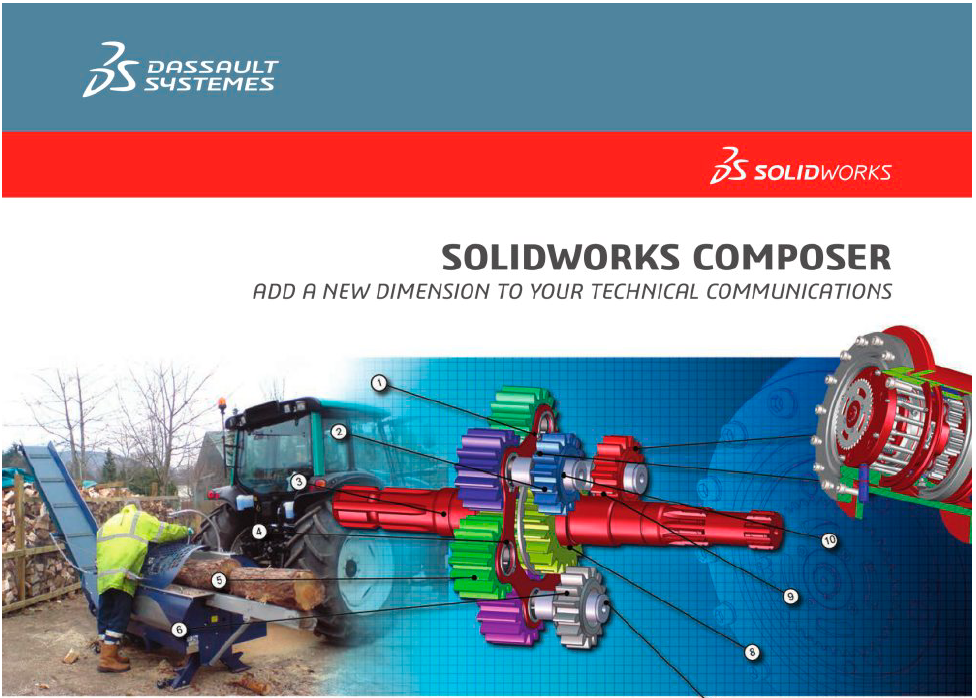
SOLIDWORKS Composer changes that entirely. It’s a dedicated technical-communication tool that takes your native CAD data and turns it into crystal-clear assembly instructions, exploded views, interactive 3D PDFs, and step-by-step procedural animations — all without requiring your engineers to touch the documentation.
In this guide, we’ll walk through the complete workflow of building your first assembly manual in SOLIDWORKS Composer, from importing the model to publishing the final output.
Why SOLIDWORKS Composer?
Before we jump into the steps, here’s what makes Composer the right tool for assembly manuals:
- No CAD license needed — Composer is a standalone application. The person creating the manual doesn’t need SOLIDWORKS installed.
- Lightweight file format — The .smg (Composer) files are much smaller than native CAD files, making them easy to share and quick to load.
- Live linkage to source CAD — When the design changes, you update the Composer file rather than rebuilding everything from scratch.
- Multiple output formats — Publish to PDF, 3D PDF, HTML5, SVG, AVI/MP4 video, and standard image formats (JPG, PNG, TIFF) from a single source.
- No redrawing — Every view, annotation, and animation is based on the actual 3D geometry, not a flat screenshot.
Prerequisites
- SOLIDWORKS Composer installed (standalone license or part of the Technical Communications Suite).
- A SOLIDWORKS assembly file (.SLDASM) or a neutral CAD format (STEP, IGES, Parasolid, etc.).
- Basic familiarity with the assembly you’re documenting — know the order of operations.
Step 1: Import Your CAD Assembly
Launch SOLIDWORKS Composer and go to File > Open and select your assembly file. Composer will import the geometry and preserve the component structure in its own assembly tree.
Pro tip: Composer doesn’t require the full feature history — it works with the tessellated geometry. This keeps file sizes manageable and load times fast. If your CAD model has hundreds of fasteners you don’t need to show in the manual, you can right-click and delete them from the Composer tree without affecting the source CAD.
Step 2: Set Up Your Views (The Backbone of Your Manual)
Views in Composer are like saved camera positions with memory — they store not just the angle, but also which parts are visible, their colours, transparency, and positions.
- Create a cover-page view — Rotate the model to the best overall angle, adjust the background, and save the view (right-click the View tab > Add View). Name it “Cover Page”.
- Create step views — For each assembly step, position the camera, hide any components that aren’t relevant yet, and save a new view. Name them sequentially: “Step 1”, “Step 2”, etc.
- Use the Collaboration Tree — The left-side tree shows every component. Right-click > Isolate to focus on a subset of parts for a given step.
Naming matters: Double-click a view name (or press F2) to rename it meaningfully. Well-named views make linking and batch-exporting much easier later.
Step 3: Create Exploded Views
Exploded views are the heart of any assembly manual. Composer makes this incredibly intuitive:
- Click the Explode button on the toolbar — Composer auto-positions components along the assembly axes.
- Fine-tune using the Triad Vector Positioning Tool — drag individual parts along X, Y, or Z to exactly where you want them.
- For a manual explode, use the Translate and Rotate tools to position each component precisely.
- Save the exploded position as a new view (e.g., “Exploded View”).
You can create multiple explode variations — one for the overall parts layout and another zoomed-in detail view for a tricky subassembly.
Step 4: Add Annotations, Balloons, and BOM
Now your views are set up — it’s time to add the information your reader needs.
Balloons (Callout Labels)
- Go to Author > Balloon or click the Balloon tool.
- Click on each component you want to label. The balloon automatically picks up the item number from the BOM.
- Adjust balloon style (circle, square, with/without lines) in the Properties panel.
Bill of Materials (BOM)
- Go to Author > Bill of Materials.
- Position the BOM table on the canvas — it auto-populates with part numbers, quantities, and descriptions pulled from the source CAD.
- Customise columns by right-clicking the BOM header.
Custom Annotations
- Text boxes — Add step-by-step instructions as rich text.
- Arrows and path lines — Indicate where a part goes or how it moves.
- Dimensions — Show critical clearance or alignment measurements.
- Cutting planes — Section the model to reveal internal components.
Everything is fully customisable — font, colour, line weight, and style — through the Properties panel. Use Styles to maintain visual consistency across all views.
Step 5: Add Animation (Optional but Powerful)
An animation can make your manual far more effective — especially for complex assembly sequences where words alone fall short.
- Switch to the Animation workspace (View > Workspace > Animation).
- The timeline appears at the bottom. Create keyframes for each critical position of your components.
- Drag parts between keyframes — Composer interpolates the movement automatically.
- Use transparency keyframes to make parts “appear” or “disappear” at the right moment.
- Export the animation as an AVI or MP4 video to embed in your final manual.
Animations are especially valuable for multilingual facilities — they transcend language barriers. A technician anywhere in the world can watch a part explode off or snap into place.
Step 6: Link Your Views Together (Interactive Navigation)
Composer lets you create a true interactive document where readers click Next / Back buttons to step through the assembly.
- In each view, add a text box or button labelled “Next Step >” and “< Back”.
- Select the button, go to the Properties panel, and set the Link field to the next view or an external file.
- Use relative paths — if you’re publishing to a folder or website, delete the absolute path and keep only the filename (e.g., “Step2.svg”). This way, links work when the folder moves to a server.
- Right-click the view tab > Update to save the link change.
Step 7: Publish Your Assembly Manual
This is where it all comes together. Composer offers multiple publishing paths depending on your audience:
| Format | Best For |
|---|---|
| 3D PDF | Interactive documents your customer can rotate, zoom, and pan on any device — no special software required. |
| SVG (via Tech Illustration Workshop) | High-quality 2D vector line art for printed manuals or web pages. Crisp at any zoom level. |
| HTML5 / Interactive SVG | Self-contained web pages with clickable navigation, ideal for mobile or tablet use on the shop floor. |
| AVI / MP4 Video | Animation playback for training videos, service bulletins, or email attachments. |
| Microsoft Word | Insert views as linked pictures that auto-update when the CAD model changes. |
| High-Res Images (JPG, PNG, TIFF) | For print catalogs, brochures, or embedding in existing document templates. |
Quick Export to SVG (Batch)
- Go to Workshops > Tech Illustration.
- Configure line widths, shadows, and colour regions.
- Choose Multiple views and select your named views.
- Composer exports one SVG file per view — all ready to drop into a Word document or web page.
Producing a 3D PDF
- Go to File > Publish > 3D PDF.
- Select which views to include. The reader can switch between them.
- The resulting PDF embeds the actual 3D model — users click and drag to rotate it.
Step 8: Update When the Design Changes (The Real Magic)
This is Composer’s killer feature. When your engineering team revises the CAD model, you don’t start over:
- Right-click the top-level assembly in the Collaboration Tree.
- Select Update and point to the revised CAD file.
- Composer updates the geometry while preserving your views, annotations, balloons, and animations.
- Re-publish — your manual is up to date in minutes, not days.
For teams using SOLIDWORKS PDM, Composer Sync can automate this update process in batches across multiple files.
Best Practices for Great Assembly Manuals
- Name every view — Unnamed views become impossible to manage as your manual grows.
- Use colour coding — Make the part being installed in the current step a different colour (e.g., yellow or orange) while keeping the rest ghosted/transparent.
- Keep file structure tidy — Store all SVGs, PDFs, images, and videos in one folder so relative links work seamlessly.
- Leverage Styles — Define your balloon style, text format, and line weights once, then apply consistently across all views.
- Test on the target device — If your audience will view it on a tablet, test the HTML output on a tablet before shipping.
- Combine with SOLIDWORKS Visualize — Use Composer for the technical step-by-step and Visualize for photorealistic hero shots of the finished product.
Conclusion
SOLIDWORKS Composer transforms assembly manual creation from a tedious, screenshot-driven chore into a streamlined, professional workflow. By working directly from your 3D CAD data, you eliminate the manual redrawing, reduce errors, and produce documentation that’s clearer, more interactive, and easier to update.
Whether you’re producing a 10-page quick-start guide or a 200-page service manual for a complex machine, Composer gives you the tools to do it faster — and the ability to keep it current when the product inevitably evolves.
Ready to get started? Import your assembly, create your first view, and see how SOLIDWORKS Composer can change the way your team produces technical documentation.
Need help setting up SOLIDWORKS Composer or training your team? Contact the CustomizeCAD team — we’re here to help you streamline your technical documentation workflow.